Set it up once.
Rules, boards, heats, gates, divisions and categories: build them, or copy the event of the last season.
Set up a speed competition, a cup or a season challenge. GPS Analyzer ranks the participants by the results of their GPS logs, also at the beach without a network, and publishes the results online.
Rules, boards, heats, gates, divisions and categories: build them, or copy the event of the last season.
Participants, loggers, logs and results are on the phone, also without a network. The log checks a value from the beach later.
Evaluate and share a public page of the standings. With a server account, the registration and the results go online.
The clips show the web app with a demo event and generated logs. The app has the same views, also without a network.
In the Events list, tap New event (or Settings → Events). Give the name, the days and the timezone, and choose the rules: the basic rules, a rule set, or the rules of one of your events.
The Setup tab has the place, the rules, the divisions, the categories, the boards, the heats and the gates. The Rules tab shows the rules in plain words.
On the Participants tab, add one, paste rows (sail number, name, nation, tags) or open a CSV, TSV or JSON file. Or turn on the registration and send the link.
The Files tab has the logs of the event: add them, or take them from your own files. Hand out the loggers at the desk: a file goes to the participant who has its logger at its time.
On the Results tab, tap Evaluate: the standings, the best runs and the titles, for each division and category.
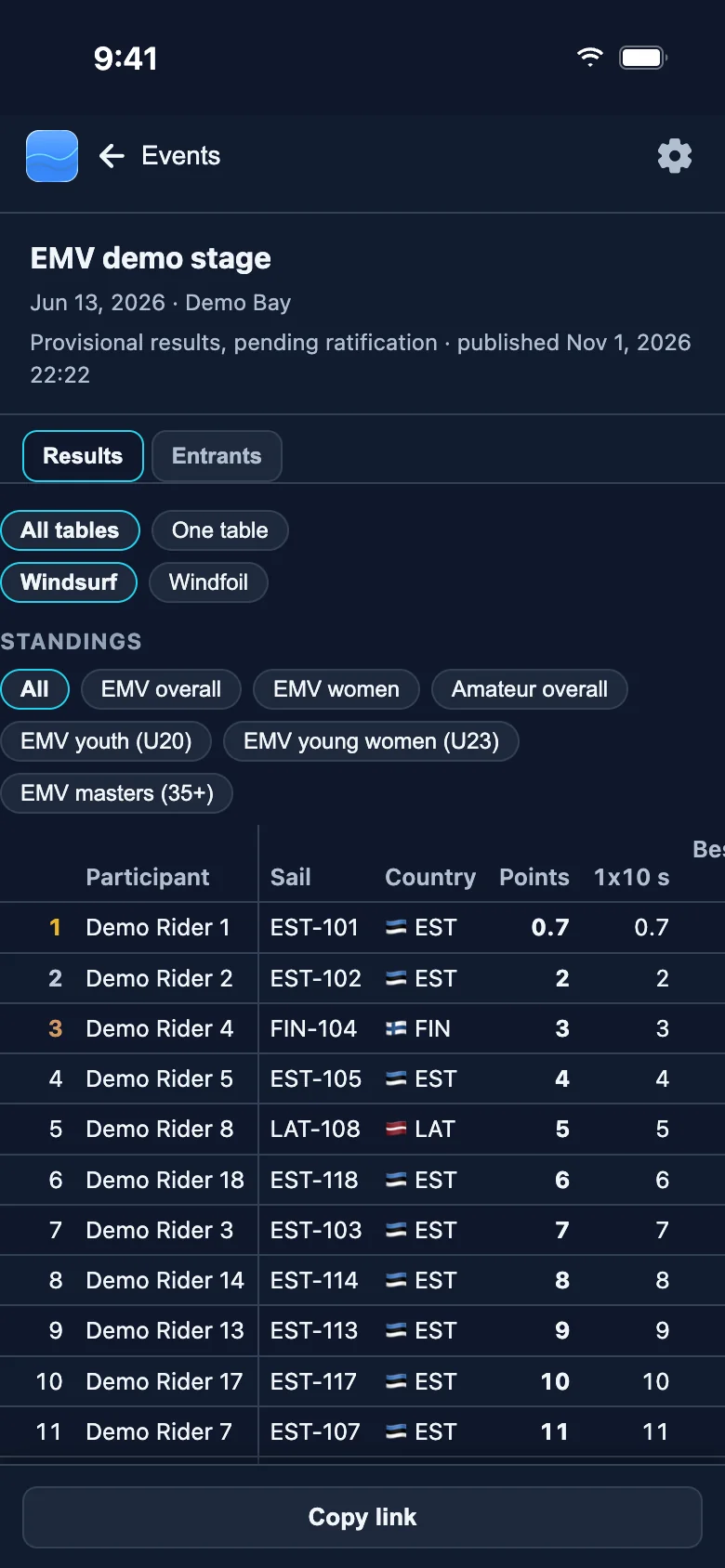
Publish puts the views that you choose on a public page, also for visitors without a sign-in. Copy link shares it.
A closer look at the tabs of an event and the other views.
A rule set gives the boards, the points, the discards and the tie-breaks. A board ranks one metric (2 s, 10 s, 500 m, 1 nautical mile, Alpha 500 and others) by the best run or the mean of the best runs.
Change the rules under Setup → Rules. With a server account, save them as a new edition for other organisers.
Heats are optional. Each heat has its own time window and state; open, close and score them on the Day tab.
A gate (a speed course, a corridor or an area) limits the runs that count: a run counts only when all its points are in the gate.
The roster has the name, the sail number, the nation, the gender, the birth date and the tags. Paste rows, or import CSV, TSV or JSON.
Divisions, for example Foil and Fin, rank alone. Categories (gender, age, tags) give their own rankings inside each division.
Under Setup → Registration, choose who can apply: all registered users, or only the people with the link. New link stops the old one.
The athlete's profile fills in the form. You accept each application under Participants, or the event takes them at once.
Hand out the loggers at the desk and take them back; the times tell which participant a file belongs to.
The event keeps its own copy of each log. A file shows its state and its flags, for example outside the event time or outside the gates.
The Day tab shows the current heat, the counters and a status board of all participants.
Enter a value, a position or a status, or paste rows. ≠ marks an entered value that differs from the log: keep it, or take the log value.
Evaluate gives the standings, the heat tables, the best runs and the titles. E marks an entered value, grey a discarded score, and * a tie that waits for a decision.
A series adds up the points of its events; make one with New series.
With a server account, Publish shows the views that you choose on a public page, provisional or final.
The page shows the names, sail numbers, countries, divisions, categories and results; not the e-mail addresses, birth dates, logs or tracks.
With a server account, the app sends its events to the server about 30 seconds after a change. In the web app they are read-only.
Export makes an event file (.event.zip) with the results and the logs. Import it on another phone or in the web app.
For the app in general, see the Help page. You can also write to us at info@majasa.ee.